Family register (grid view)
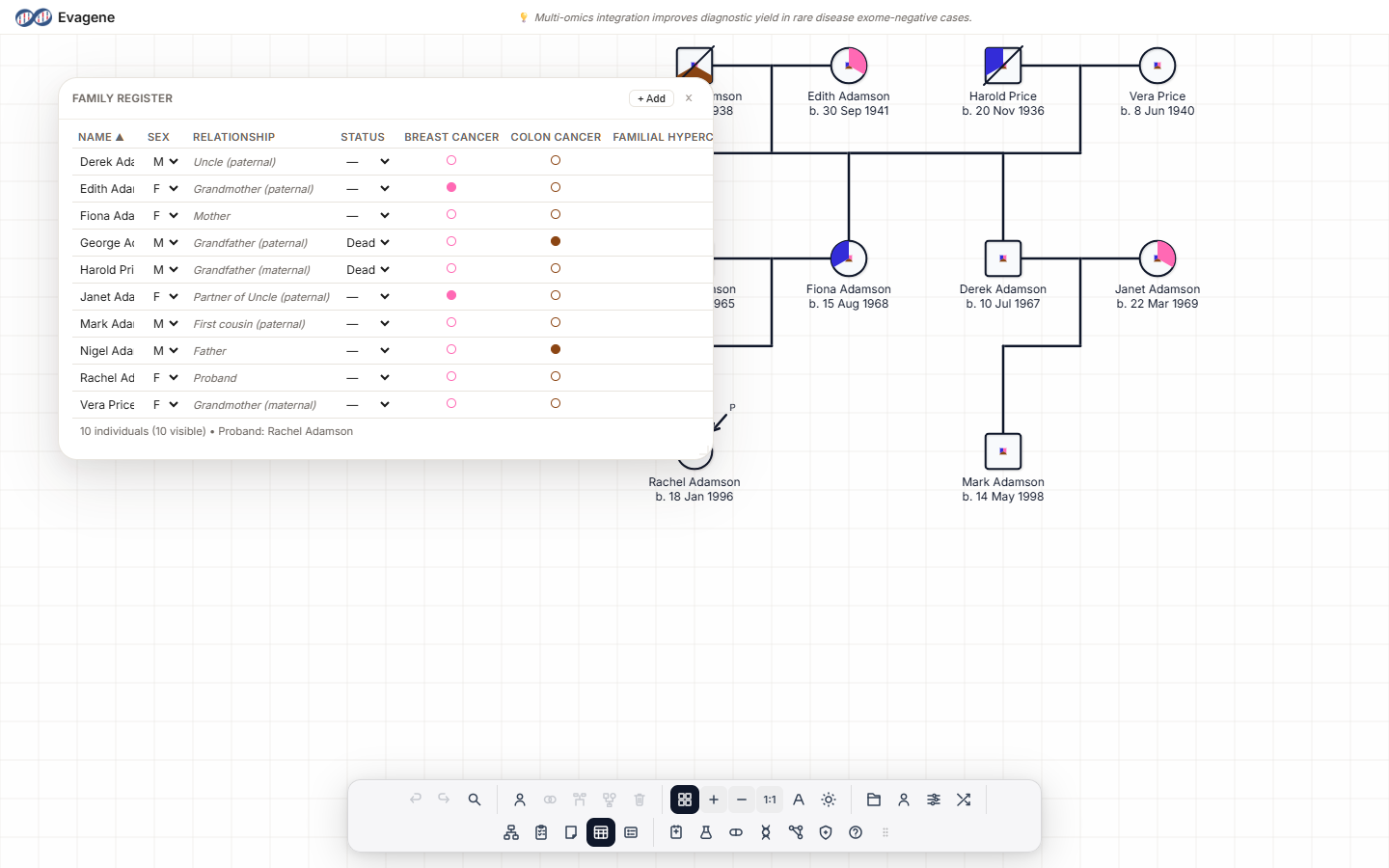
The Family Register is a sortable spreadsheet of everyone in the pedigree. When a family grows past a handful of people, the grid is the fastest way to make edits, sort by name or status, audit who is in the tree, and show or hide whole branches on the canvas — all without hunting around the drawing.
Where to find it
Open the grid with the Family register (grid view) button in the Structure group of the dock. A floating Family Register panel appears; like every dock panel it is draggable, resizable from any edge or corner, and its dock icon highlights while the panel is open. Its titlebar carries a + Add button (tooltip “Add individual to pedigree”) and a close ×. Rows highlight in sync with the canvas selection, so clicking a symbol on the canvas finds its row and vice versa.
The columns
| Column | What it shows |
|---|---|
| Name | Editable text. Click to rename inline. |
| Sex | Dropdown: ? · M · F · I · O. |
| Relationship | Relationship to the proband (read-only). |
| Status | Death-status dropdown: — · Alive · Dead · SB · NND · Preg. |
| Disease columns | One column per disease in the pedigree, shown as a coloured dot. Hover a dot for “Disease: status”. |
| × (actions) | Remove from pedigree (tooltip “Remove from pedigree”); asks you to confirm. |
| Show | Rightmost checkbox — toggles whether the individual is drawn on the canvas. |
Sorting
Click a header — Name, Sex, Relationship, or Status — to sort by that column. Click it again to reverse the order; the active header shows a ▲ (ascending) or ▼ (descending) arrow.
Showing and hiding branches
The Show checkbox hides or reveals one individual at a time. To collapse or expand a whole branch in one move, right-click a row for these options:
- Show All Ancestors — reveal everyone above the person.
- Hide All Ancestors — hide everyone above the person.
- Show All Descendants — reveal everyone below the person.
- Hide All Descendants — hide everyone below the person.
At the foot of the panel a summary line reads N individuals (M visible) • Proband: {name}, so you can always see how many people are in the family and how many are currently drawn.
Worked example · Audit and prune a large family
We have a large fictional pedigree — the Okonkwo family — and want to tidy the register, fix a couple of details, and collapse a distant branch.
- 1Open the register. Click Family register (grid view) in the dock. The floating Family Register panel lists every Okonkwo relative.
- 2Sort by name. Click the Name header to sort alphabetically (a ▲ appears); click again to reverse if needed.
- 3Fix a typo. Spotting “Adaeze” misspelled, click the Name cell and correct it inline.
- 4Update a status. For a relative who has died, open the Status dropdown and choose Dead.
- 5Hide a distant cousin. Untick the Show checkbox on a far-flung cousin to remove them from the canvas while keeping their record.
- 6Collapse a branch. Right-click a founder’s row and choose Hide All Descendants to fold an entire sub-tree off the canvas in one move.
- 7Add a newcomer. Click + Add in the titlebar to add a new relative to the pedigree, then fill in their details in the grid.
Good to know. Unticking Show or choosing Hide All Descendants only hides people from the canvas — their records stay in the register and the N individuals (M visible) count reflects the difference. Removing someone is different: the row’s × (“Remove from pedigree”) deletes the record and asks you to confirm first.
About Evagene. Evagene is an academic, research, and educational pedigree modelling platform. It is not a medical device and is not intended to diagnose, prevent, monitor, predict, treat, or manage disease, or to determine eligibility for screening, testing, referral, or treatment, or to replace professional clinical judgement. Outputs are illustrative and for educational / research purposes only.