Family history questionnaire
A guided, step-by-step questionnaire that records a family and personal health history and turns it into a pedigree. It is the fastest way to start a pedigree if you would rather answer questions than draw. This is data capture for educational and research use — not a medical assessment.
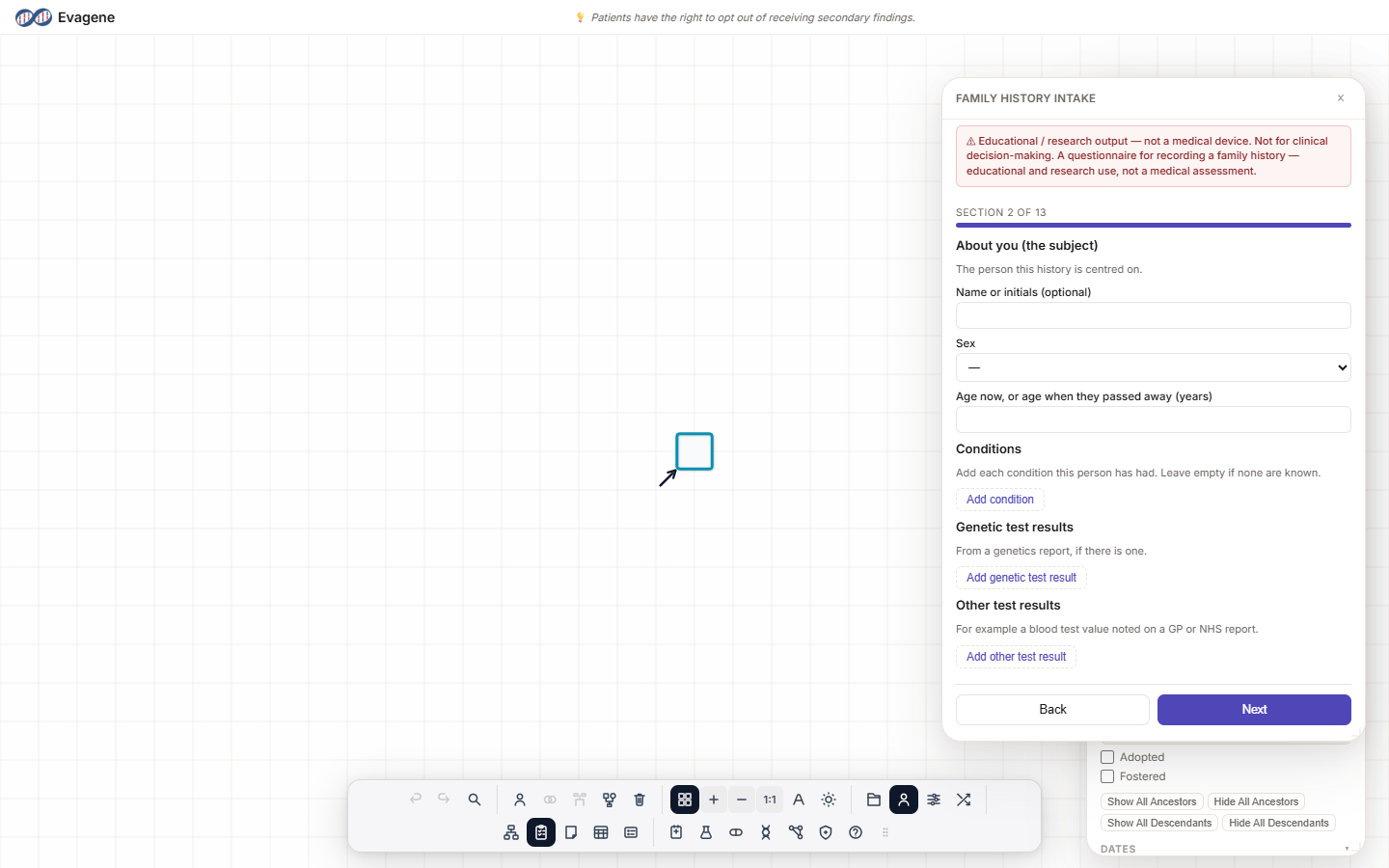
Where to find it
There are two entry points, and both open the same questionnaire:
- The dock button Family history intake (guided questionnaire), next to the Pedigree builder button.
- Inside the Pedigree builder panel, the Guided intake section — click Add family history….
It opens as a floating, draggable panel titled Family History Intake. There is no keyboard shortcut.
Starting
The start screen explains what the questionnaire does and offers a Begin button. If you already have a pedigree open, you also choose where the answers go:
- Add to the current pedigree — new relatives are added to the pedigree you have open; anything already recorded is used to ask more targeted questions.
- Start a new family — build a fresh pedigree from your answers.
With no pedigree open, your answers simply become a new pedigree.
Working through the steps
The questionnaire is a wizard — one section at a time, with a progress bar reading Section N of M and Back / Next buttons. Answers save as you go, and you can move back and change anything. The sections, in order, are:
- About you (the subject) — name or initials (optional), sex, age now or age at death, plus optional conditions, genetic test results, and other test results.
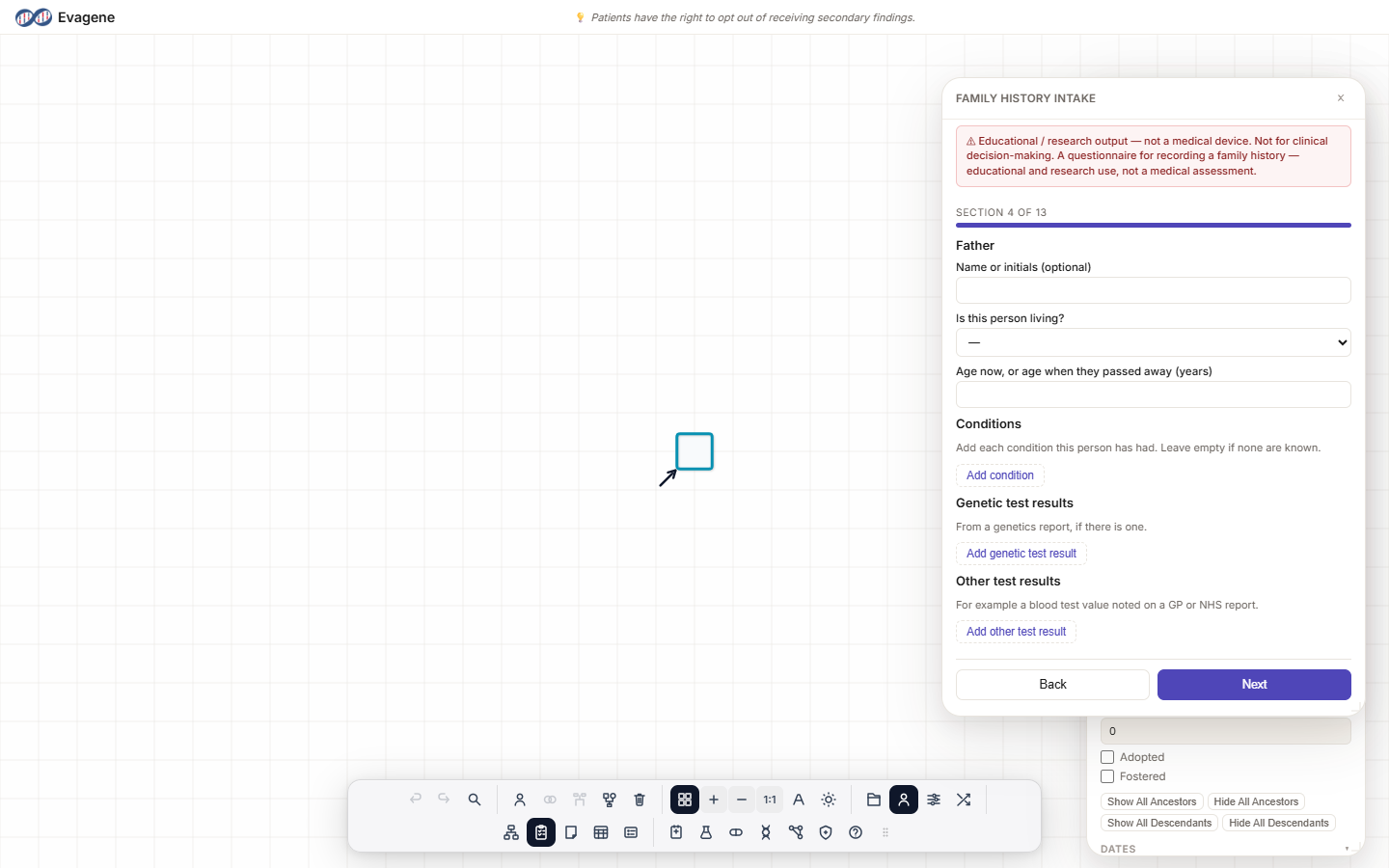
- Mother and Father — living status, age, and the same optional findings.
- A series of Yes / No questions that branch the questionnaire: add brothers and sisters? a partner? children? grandparents? aunts and uncles (each side)? half-siblings? first cousins? grandchildren? Answer No and the section is skipped; answer Yes and you add each relative on a small card (with an Add another button and a Remove on each card).
For each person you can record conditions (typed in, or picked from the disease catalogue), genetic test results (gene + result), and for close relatives other test results (a value with Normal / Low / High / Borderline).
Review and finish
The last step is Review and finish. It tells you whether the answers will be added to the current pedigree or turned into a new one, and flags anything still to complete. Click Add to pedigree and Evagene builds the family: it creates each relative, wires up the relationships, sets the subject as the proband, and records the conditions and test results you entered. Where a connecting relative is needed to join the tree (for example a parent linking grandparents), Evagene adds it automatically and tells you so on the Done screen.
If you chose to add to a pedigree that already has a proband, Evagene asks “This pedigree already has a proband” and lets you Add as relatives — the existing proband is kept.
Worked example · A subject, an affected mother, and a brother
We will build a fresh pedigree for a fictional subject from answers alone.
- 1With no pedigree open, click the dock button Family history intake (guided questionnaire), then Begin.
- 2On About you (the subject), type initials
AB, set Sex to Female and Age to 40. Click Next. - 3On Mother, set living status and age, then under Conditions click Add condition and type Breast to pick “Breast cancer” from the catalogue. Click Next.
- 4On Father, set living status and age. Click Next.
- 5At Add brothers and sisters? click Yes, add one card, set Sex Male and an age. Answer No to the remaining branch questions, clicking Next through to Review.
- 6Click Add to pedigree, then Open the new pedigree — AB sits at the centre as the proband, the mother is flagged with the recorded condition, and the brother and father are wired in.
What it does and does not do
The questionnaire is data capture only. It records people, relationships, and findings, and draws the pedigree. It does not run any risk model, produce a score, or make any assessment — there is no risk number anywhere in the flow. Conditions are stored as catalogue references for documentation, not as diagnoses. When you are ready to explore published models on the family you have captured, open Risk analysis separately; its outputs are illustrative and for educational / research purposes.
Good to know. You can move Back at any point and change an answer — nothing is committed to the pedigree until you click Add to pedigree on the review screen. Use a fictional subject and relatives for teaching and demonstrations.
About Evagene. Evagene is an academic, research, and educational pedigree modelling platform. It is not a medical device and is not intended to diagnose, prevent, monitor, predict, treat, or manage disease, or to determine eligibility for screening, testing, referral, or treatment, or to replace professional clinical judgement. Outputs are illustrative and for educational / research purposes only.