Individual properties
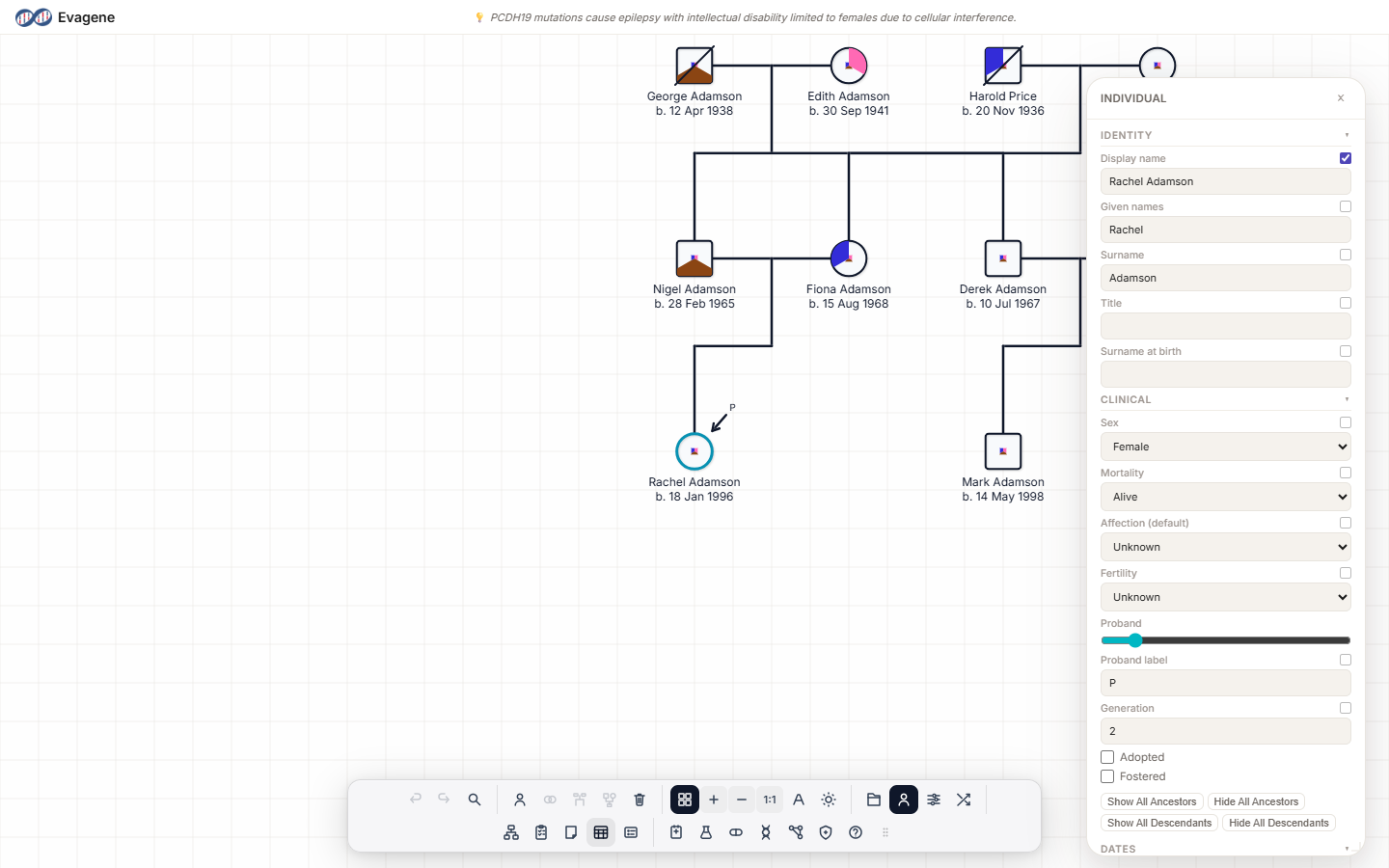
The Individual properties panel is the main editing surface for a single person — everything from their identity and clinical status to dates, contact details, and consent lives here. Every field saves automatically, and every edit can be undone.
Where to find it
There are three ways to open the panel:
- Click an individual on the canvas. On desktop the panel opens automatically, focused on the person you clicked.
- Use the dock. Click the Individual properties button in the File group. With nothing selected the button reads “Select an individual to view its properties.”
- Press
F2, which opens the panel and puts the cursor straight into the Display name field.
The panel is a floating Individual window. Drag it anywhere by its titlebar, and resize it from any of its eight handles — the four edges and four corners. Its dock icon highlights while the panel is open, and the × in the titlebar closes it.
Identity
The Identity section (click the heading to collapse it) holds the person's names and titles. Each field has its own “show on pedigree” toggle so you can decide what appears on the drawing:
- Display name — the label used throughout Evagene.
- Given names, Surname, Title, and Surname at birth.
Clinical
The Clinical section records status. The pickers offer the standard pedigree vocabularies:
| Field | Options |
|---|---|
| Sex | Female, Male, Unknown, Ambiguous Female, Ambiguous Male, Intersex, None, Other |
| Mortality | Alive, Unknown, Dead, Suicide (confirmed), Suicide (unconfirmed), Spontaneous abortion, Therapeutic abortion, Neonatal death, Stillborn, Lived one day, Pregnancy, Other |
| Affection (default) | Unknown, Clear, Affected, Possible affection, Heterozygous, Affected (hearsay), Carrier, Examined, Untested, Immune, Presymptomatic, Other |
| Fertility | Unknown, Fertile, Infertile, Infertile by choice, Other |
Below the pickers, a Proband slider (0–360) sets the direction of the proband arrow, with a Proband label field beside it. The section also carries the Generation field and the Adopted and Fostered checkboxes.
Dates, Notes, and Contact
- Dates — Date of birth and Date of death, entered through partial-date pickers when only the year or month is known.
- Notes — a free-text markdown field.
- Contact — Home telephone, Daytime telephone, Mobile, and Email.
Pre-built sections
Beneath identity and clinical status sit a series of pre-built sections, each documented on its own guide page. They let you attach structured records to the individual:
- Events and Ancestry — see Ancestry.
- Population Carrier Risks.
- Diseases, Allergies, Traits, and Inferred Traits — see Diseases.
- Investigations and Genetic Tests (Imported) — see Investigations.
- Interventions — see Interventions.
- Consents.
- Markers — see Markers.
The Consents picker offers: Clinical testing, Genetic testing, Research use, Data sharing, Biobanking, Recontact, Incidental findings, Photography, and Publication.
Worked example · Fill in the proband
We will complete the record for the proband of a fictional family (pedigree PED-204, individual I-7).
- 1Open the panel. Click individual I-7 on the canvas — the floating Individual panel opens.
- 2Set the identity. In Identity, type a Display name — say “Proband (Family Marlowe)”.
- 3Record clinical status. In Clinical, choose a Sex, set Mortality to Alive, and pick an Affection (default) value.
- 4Add a date. In Dates, enter a Date of birth using the partial-date picker.
- 5Point the arrow. Drag the Proband slider so the proband arrow points where you want it.
- 6Resize to taste. Drag a corner handle of the panel to make it larger, then carry on. Every change has already saved — press Ctrl+Z to undo any of them.
Good to know. Every edit in the Individual panel saves automatically — there is no Save button — and every one can be undone with Ctrl+Z. Each section heading is collapsible, so you can fold away the parts you are not using and keep the panel compact.
About Evagene. Evagene is an academic, research, and educational pedigree modelling platform. It is not a medical device and is not intended to diagnose, prevent, monitor, predict, treat, or manage disease, or to determine eligibility for screening, testing, referral, or treatment, or to replace professional clinical judgement. Outputs are illustrative and for educational / research purposes only.