Investigations Manager
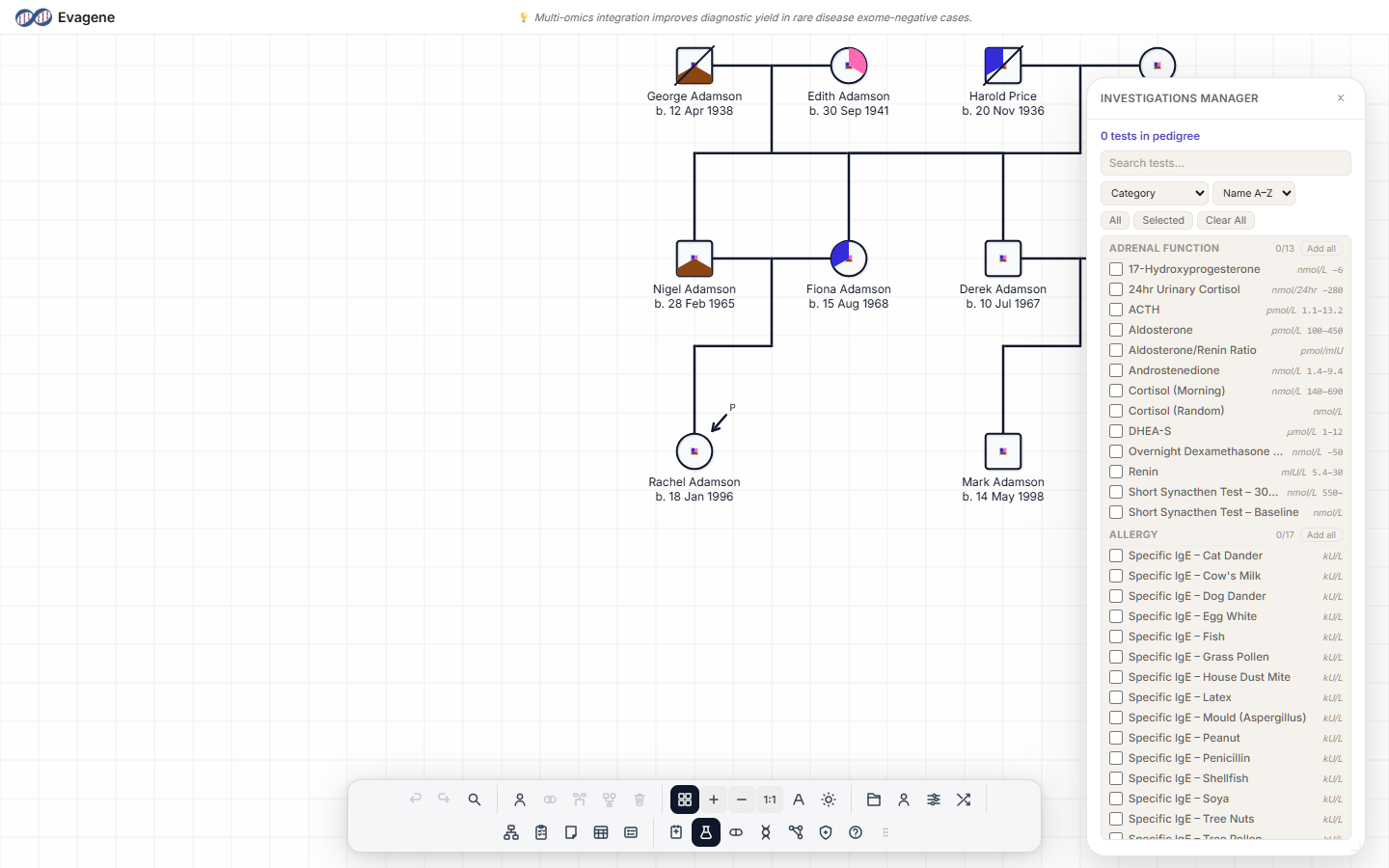
The Investigations Manager (formerly Tests Manager) lets you document clinical investigations for a fictional family: record results with reference ranges, LOINC codes, specimen types, and out-of-range flags. This is documentation for teaching and research, not screening or clinical guidance.
The two-level pattern
Investigations follow the same two-level pattern as every other catalogue in Evagene:
- Pedigree level (the Manager panel). The Investigations Manager chooses which investigation types are active for the whole pedigree. A type's checkbox adds that type to the pedigree's working set; it records no result and touches no individual.
- Individual level (the properties panel). The actual result — a numeric value on a date — is added in the Investigations section of the Individual properties panel.
A type carries the metadata (unit, reference range, LOINC code, specimen type); a result carries one value. Activate the type for the pedigree first, then record the result on the person.
Where to find it
Click the Investigations button in the dock to open the floating Investigations Manager panel — this panel is the renamed Tests Manager. To record a result, select the individual and open the Investigations section of the Individual properties panel.
The Investigations Manager (pedigree level)
The layout mirrors the Disease Manager. The panel opens with a summary reading “N tests in pedigree”, and above the list you have:
- A “Search tests…” box.
- A Group-by dropdown: Category / Specimen Type.
- A Sort dropdown: Name A–Z / Name Z–A.
- Quick filters: All / Selected / Clear All.
- A grouped list with Add all / Remove all on each group header.
An investigation type carries a name, a category, a unit, a reference range (shown low–high), a LOINC code, a specimen type, and aliases. A row's checkbox adds that test type to the pedigree's working set — it records no result and touches no individual.
What a type carries
| Property | Held on | Notes |
|---|---|---|
| Name | Type | Catalogue name of the investigation. |
| Category | Type | Used by the Group-by dropdown. |
| Unit | Type | Inherited by every result — not entered per person. |
| Reference range | Type | Shown as low–high; drives the ▲ H / ▼ L flag. |
| LOINC code | Type | Standard identifier for the investigation. |
| Specimen type | Type | Group-by option as well as a property. |
| Aliases | Type | Alternative names the search box matches. |
| Value | Result | The single numeric value entered on a person. |
| Date & Notes | Result | Entered alongside the value. |
Recording a result (individual level)
Select an individual and open the Investigations section of the Individual properties panel.
- If no types are configured you will see “No tests configured — use Manage (the Investigations Manager) to add tests to this pedigree” with a Manage button.
- Otherwise click + Add Investigation, choose a type, and expand the row.
- Enter a numeric Value. The header shows a ▼ L or ▲ H flag if the value falls below or above the type's reference range.
- Enter a Date and Notes.
The unit, reference range, LOINC code, and specimen all come from the type, not the result. Clearing the value deletes the record.
Worked example · Record a ferritin result
We will document a serum-ferritin result on one individual in a fictional family — activating the type, then entering the value. No real, named person is involved.
- 1Open the Investigations Manager. Click Investigations in the dock.
- 2Add the type to the pedigree. Add a Serum ferritin type (or any type already present) by ticking its checkbox, then close the panel.
- 3Select the individual. Click the person on the canvas to open their Individual properties panel.
- 4Add the result. Open the Investigations section, click + Add Investigation, and choose Serum ferritin.
- 5Enter value and date. Type a Value and a Date. Note how an out-of-range value shows the ▲ H / ▼ L flag in the row header.
Good to know. The unit, reference range, LOINC code, and specimen are properties of the type, not the result — change them once in the Investigations Manager and every recorded result follows. The ▲ H / ▼ L flag is a descriptive comparison against the type's range; it is not a screening or clinical judgement. Clearing a result's value removes the record entirely.
About Evagene. Evagene is an academic, research, and educational pedigree modelling platform. It is not a medical device and is not intended to diagnose, prevent, monitor, predict, treat, or manage disease, or to determine eligibility for screening, testing, referral, or treatment, or to replace professional clinical judgement. Outputs are illustrative and for educational / research purposes only.