Ancestry
Record ancestry proportions per individual. These drive the educational population carrier-frequency priors — reference figures drawn from published literature, used for teaching and research, not for screening. With no ancestry recorded, no personalised population figure is shown.
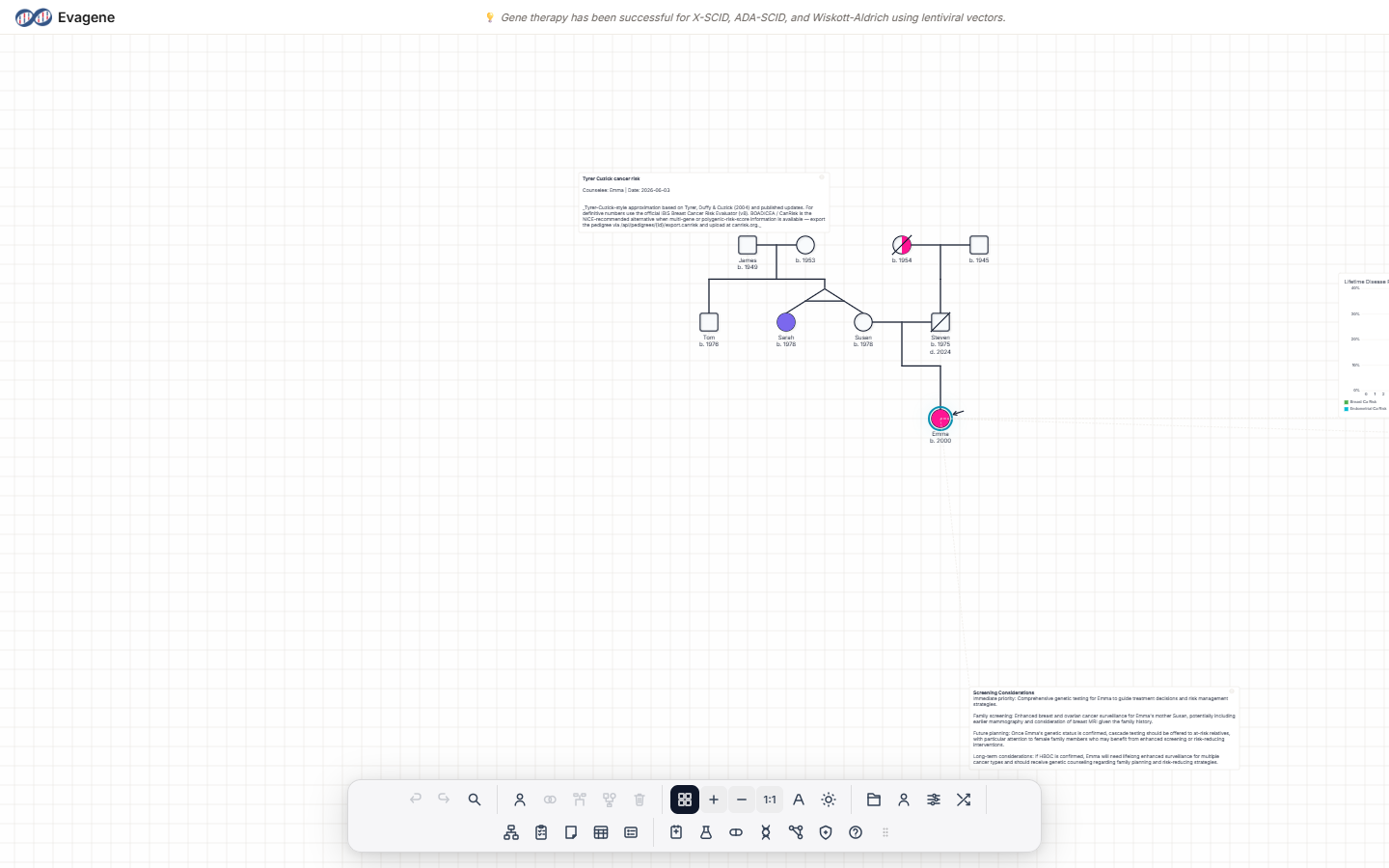
Where to find it
Ancestry lives in the Individual panel, in the Ancestry section near the top. Select a person on the canvas to open the panel; like every Evagene panel it floats over the canvas and can be dragged, and resized from any edge or corner, with its dock icon highlighting while it is open. By default the section reads “Inherited from parents” and is read-only.
Recording proportions
Tick Override to make the section editable, then:
- Click + Add Ancestry to open a picker with a Search ancestries… box over a hierarchical catalogue.
- Selecting an ancestry adds it at 100%.
- Each ancestry badge carries a number field (0–100, titled Proportion %) and a × to remove it.
If the proportions do not total 100%, a warning appears — “Proportions total {n}% (should be 100%)” — with an Auto-assign button that derives proportions from the parents’ recorded ancestry. Ancestry feeds the Population Carrier Risks section.
| Control | What it does |
|---|---|
| Override | Switches the section from inherited-from-parents (read-only) to editable. |
| + Add Ancestry | Opens the picker with a search box over a hierarchical catalogue; the chosen ancestry is added at 100%. |
| Proportion % | Per-badge number field, 0–100. Set the share for each ancestry. |
| × | Removes an ancestry badge. |
| Auto-assign | Appears with the “should be 100%” warning; derives proportions from the parents’ recorded ancestry. |
Worked example · Record mixed ancestry
We will record a 50/50 ancestry split for a fictional person.
- 1Select the individual. Click the person on the canvas to open the Individual panel, then open the Ancestry section.
- 2Override. Tick Override to make the section editable.
- 3Add two ancestries. Click + Add Ancestry and pick two ancestries from the searchable catalogue.
- 4Split the proportions. Set each to 50 in the Proportion % fields — or click Auto-assign to derive them from the parents.
Good to know. Population carrier frequencies are educational priors with explicit sourcing, shown for teaching and research. They are not a screening tool and do not indicate any individual’s status. With no ancestry recorded, no personalised population figure is shown at all.
About Evagene. Evagene is an academic, research, and educational pedigree modelling platform. It is not a medical device and is not intended to diagnose, prevent, monitor, predict, treat, or manage disease, or to determine eligibility for screening, testing, referral, or treatment, or to replace professional clinical judgement. Outputs are illustrative and for educational / research purposes only.