View & layout
Once a family is on the canvas, the View group controls how it looks — the grid, the zoom level, the label font, and dark mode — while Auto-arrange tidies a tangled tree by re-flowing the generations. None of these touch the data; they only change how the pedigree is displayed.
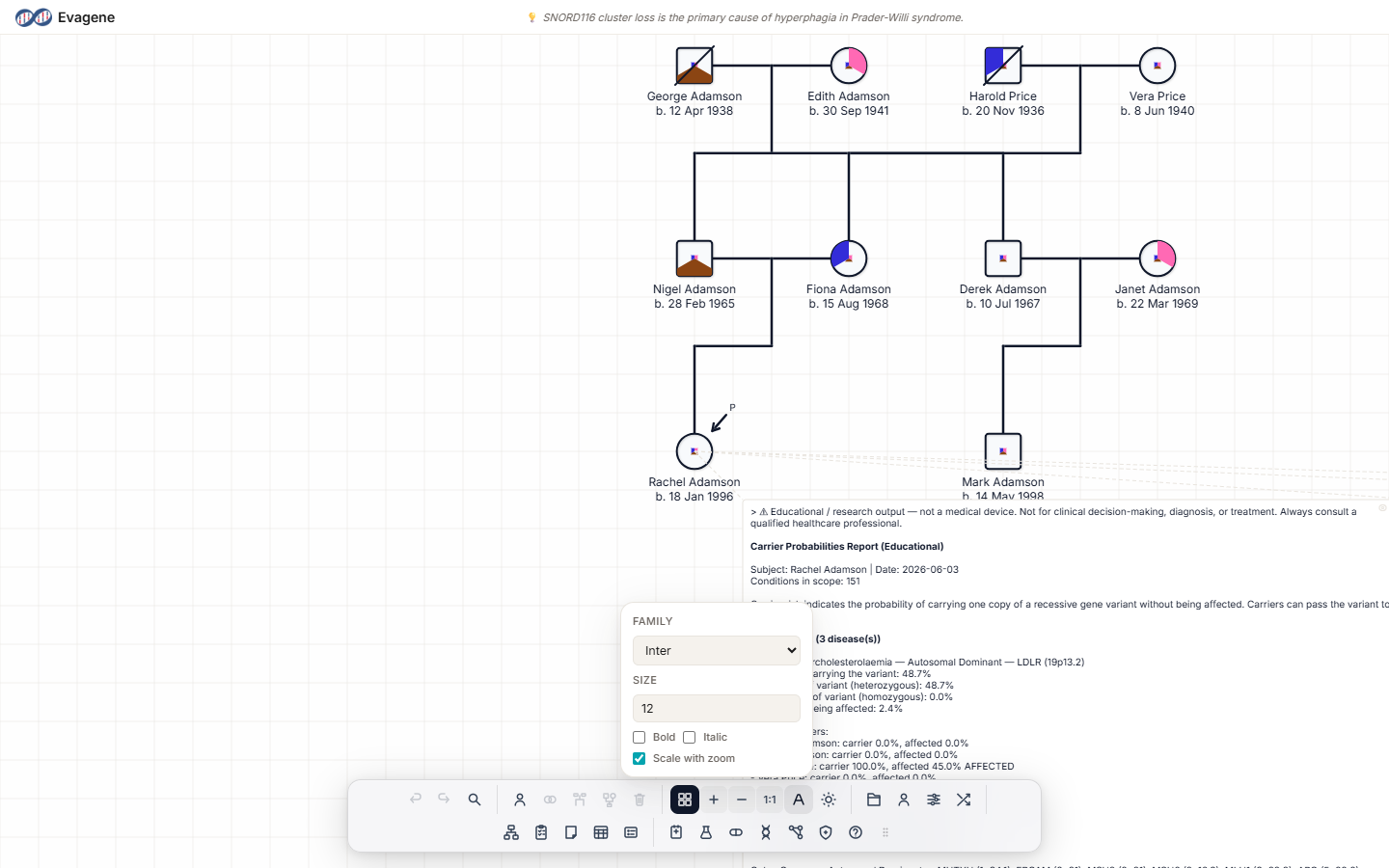
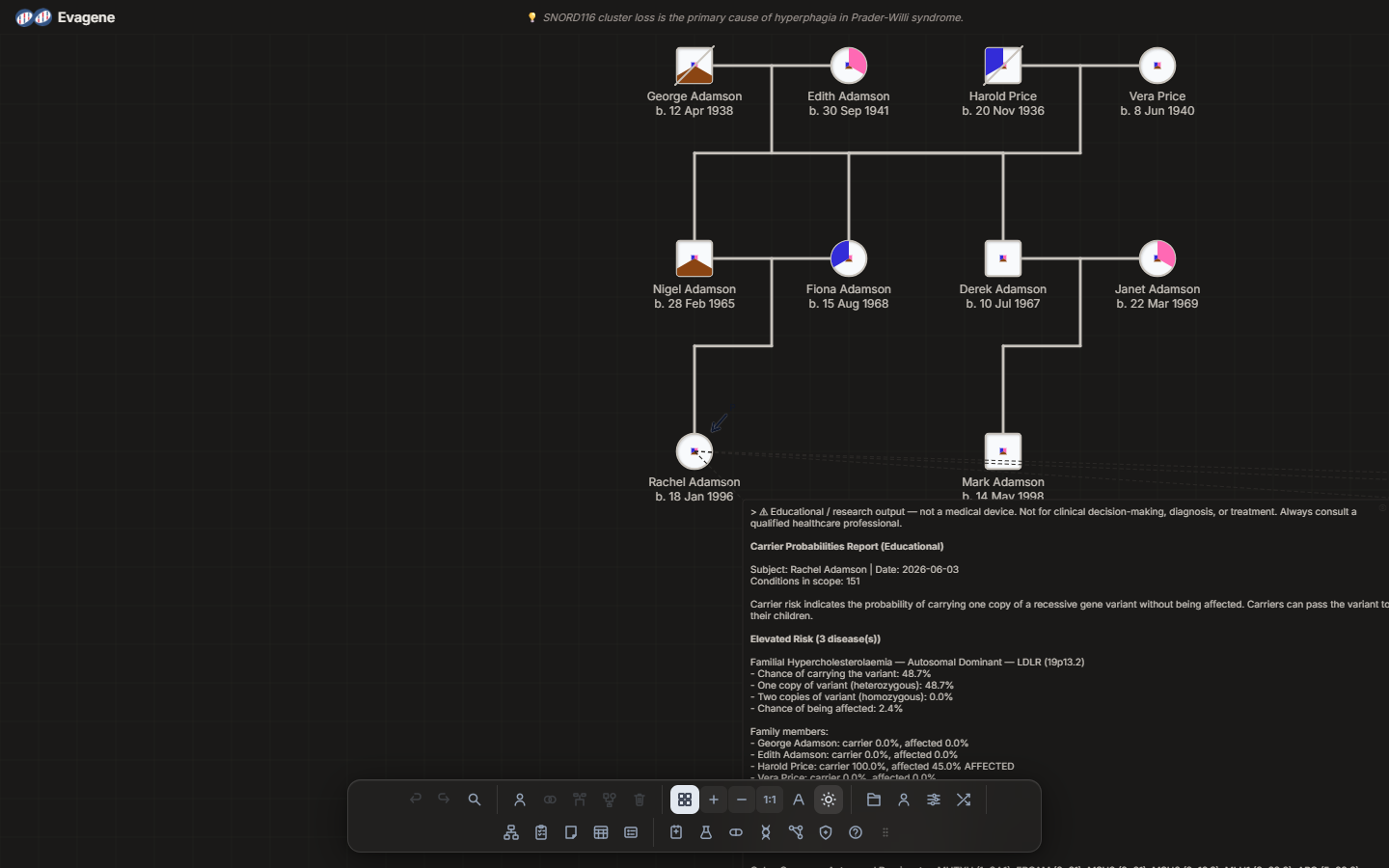
Where to find it
The view controls live in the View group of the dock that runs along the edge of the canvas, with Auto-arrange layout sitting alongside. Every panel that the dock opens — for example Pedigree builder or Family register — is floating, draggable, and resizable from any edge or corner, and its dock icon highlights while the panel is open so you can always see what is on screen.
- Grid. Click Toggle grid (Ctrl+G) to turn snap-to-grid on or off. With it on, symbols align to the grid as you place and move them.
- Zoom. Use Zoom in and Zoom out, or the reset button labelled 1:1 (tooltip “Reset zoom”). The mouse wheel zooms centred on the pointer, and the keys
+/-zoom while0resets both zoom and pan. - Font. Click Font settings to open a small popup for the label typeface and size (see the table below).
- Dark mode. Click Toggle dark mode to switch the canvas between light and dark.
- Pan. The arrow keys pan the view; hold Shift for bigger steps.
The Font settings popup
Label typography is set once and applies to every individual’s on-canvas label. Font settings opens a popup with these options:
| Setting | Options / range | Notes |
|---|---|---|
| Family | Inter, System, Arial, Georgia, Mono | The typeface used for all on-canvas labels. |
| Size | Number 8–24 (default 12) | Label point size. |
| Bold | Checkbox | Renders labels in bold. |
| Italic | Checkbox | Renders labels in italic. |
| Scale with zoom | Checkbox | When on, labels grow and shrink with the zoom level rather than staying a fixed size. |
Auto-arrange layout
Building a family by hand often leaves lines crossing or generations slightly out of line. Auto-arrange layout asks the server to re-flow the generations into a clean arrangement. It is fully undoable, so you can try it and press Ctrl+Z if you prefer the previous layout. On an empty pedigree it does nothing.
Worked example · Tidy and restyle a tree
We have a fictional family — the Harlow pedigree — already drawn but looking a little untidy. We will reframe it, restyle the labels, and re-flow the lines.
- 1See the whole family. Click Zoom out a few times (or scroll the wheel back) until the entire Harlow tree fits on screen.
- 2Turn the grid on. Click Toggle grid (Ctrl+G) so symbols snap into alignment as you adjust them.
- 3Restyle the labels. Click Font settings, set Size to 14, and tick Bold. The Harlow names redraw larger and bolder.
- 4Switch to dark mode. Click Toggle dark mode to check the pedigree reads well on a dark background.
- 5Re-flow the lines. Click Auto-arrange layout. The server re-flows the generations and the crossed lines straighten out. Not keen? Press Ctrl+Z to undo.
- 6Reset the view. Press 0 to reset zoom and pan back to a neutral 1:1 view.
Controls at a glance
| Control | Shortcut | What it does |
|---|---|---|
| Toggle grid (Ctrl+G) | Ctrl+G | Turns snap-to-grid on or off. |
| Zoom in | + · wheel up | Zooms in; the wheel zooms centred on the pointer. |
| Zoom out | - · wheel down | Zooms out; the wheel zooms centred on the pointer. |
| 1:1 (Reset zoom) | 0 | Resets zoom and pan to a neutral view. |
| Font settings | — | Opens the label-font popup (family, size, bold, italic, scale with zoom). |
| Toggle dark mode | — | Switches the canvas between light and dark. |
| Auto-arrange layout | — | Re-flows the generations on the server; undoable; no effect on an empty pedigree. |
| Pan | Arrows · Shift+Arrows | Pans the view; Shift takes bigger steps. |
Good to know. View settings only change how the pedigree is displayed — zoom, grid, font, and dark mode never alter the underlying family data. Auto-arrange layout does move symbols, but it is undoable, so press Ctrl+Z if you preferred your hand-placed layout.
About Evagene. Evagene is an academic, research, and educational pedigree modelling platform. It is not a medical device and is not intended to diagnose, prevent, monitor, predict, treat, or manage disease, or to determine eligibility for screening, testing, referral, or treatment, or to replace professional clinical judgement. Outputs are illustrative and for educational / research purposes only.