Canvas basics
Everything starts on the canvas: you add individuals, select them, and connect them into a family. This page covers the two left-most dock groups — Edit (undo, redo, find) and the selection-sensitive context actions (add, marry, siblings, parents, delete).
Adding your first individual
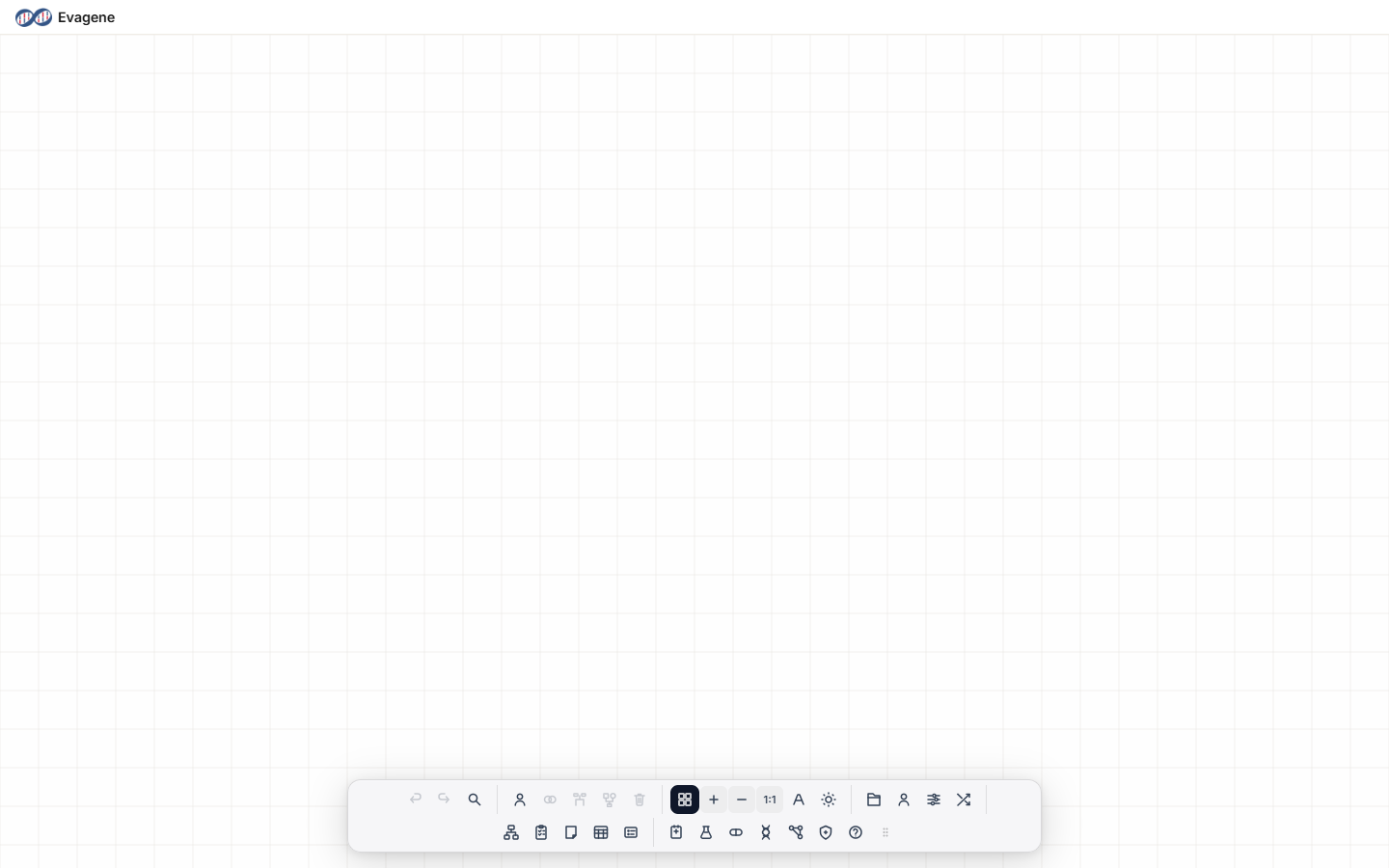
The canvas opens empty, with a grid. There are four ways to place a person, and they all produce the same result — pick whichever feels natural:
- Draw the shape. Sketch a closed shape anywhere on the canvas: a square becomes a male, a circle a female, a diamond an individual of unknown sex. Evagene recognises the gesture and snaps the symbol to the grid.
- Press a key. With the canvas focused and no text field active, press
m(male),f(female), oru(unknown). - Use the dock. Click Add individual (the person icon in the context-action group). With nothing selected it drops an unknown-sex individual at the centre of the view.
- Use the builder. Drag a symbol from the Pedigree builder palette onto the canvas.
On desktop, placing or clicking an individual opens its properties panel automatically so you can name it straight away.
Selecting individuals
- Click a symbol to select it.
- Ctrl-click or Shift-click to add or remove individuals from a multi-selection.
- Drag a rectangle across empty canvas to lasso several at once.
- Ctrl+A selects everyone; Esc clears the selection and closes any open properties panel.
Connecting people: the context actions
The context-action group sits just right of the Edit group. Its buttons are selection-sensitive — most are greyed out until you have selected the right number of individuals, and their tooltips update to tell you what they will do.
| Button | Select first | What it does |
|---|---|---|
| Add individual | Nothing, or one | Nothing selected → adds an unknown-sex individual. One selected → cycles that person's biological sex (the tooltip shows e.g. “Change sex: Female → Male”). |
| Marry selected pair | Exactly two | Draws a partnership line between the two. Disabled if they are already partnered. |
| Make siblings | Exactly two | Joins them in a sibship. Click again to cycle: siblings → DZ (fraternal) twins → MZ (identical) twins → back to siblings. |
| Add parents | Exactly one | Adds a mother-and-father couple above the individual. Disabled if it already has parents. |
| Delete selected | Any deletable selection | Removes the selection (with connected lines). Shortcut: Delete. |
To add children to a couple, use the Pedigree builder, which has explicit “Add child”, “Add son”, and “Add daughter” actions.
Worked example · A sibship and their parents
We will build a small fragment of a fictional family — two siblings and their parents — using only the canvas and context actions.
- 1Draw two individuals. Sketch a square on the left of the canvas (a male appears) and a circle to its right (a female). Space them apart so they do not overlap.
- 2Make them siblings. Click the male, then Ctrl-click the female so both are selected. Click Make siblings in the dock — a sibship line joins them. (Click it again to turn them into DZ twins, again for MZ twins.)
- 3Add their parents. Click just one of the siblings to select it, then click Add parents. A mother and father appear above, married and joined to the sibship.
- 4Fix a slip. Added the wrong symbol? Press Ctrl+Z to undo, or select it and press Delete.
- 5Tidy up. If the lines cross awkwardly, run Auto-arrange layout to re-flow the generations.
Undo, redo, and find
The Edit group holds three buttons:
- Undo (
Ctrl+Z) and Redo (Ctrl+Y). Every structural change is undoable. Long-press Undo to see the history. - Find individual (
Ctrl+F) opens the find bar. Type any part of a name or note and Evagene highlights matches as you type. Use < / > (orF3/Shift+F3) to step between matches, All to select every match at once, Advanced to open the full search panel, andEscto close.
Editing a relationship line
Clicking the horizontal line between two partners opens the Relationship panel, where you record consanguinity and events such as marriage, divorce, separation, engagement, partnership, or pregnancy. See Pedigree & relationship properties.
Keyboard shortcuts
| m / f / u | Add male / female / unknown individual |
| p | Add a partner / marriage to the selected individual |
| Ctrl+Z / Ctrl+Y | Undo / redo |
| Ctrl+A / Esc | Select all / clear selection |
| Ctrl+F · F3 · Shift+F3 | Find · next match · previous match |
| Delete | Delete the selection |
| F2 | Rename (focus the display-name field) |
Good to know. The Add individual button does double duty: with one individual selected it cycles that person's biological sex rather than adding anyone. Watch its tooltip — it tells you which action you are about to trigger.
About Evagene. Evagene is an academic, research, and educational pedigree modelling platform. It is not a medical device and is not intended to diagnose, prevent, monitor, predict, treat, or manage disease, or to determine eligibility for screening, testing, referral, or treatment, or to replace professional clinical judgement. Outputs are illustrative and for educational / research purposes only.